 ExFlow
How to Backup Your Entire Squarespace Site as Static HTML Files
When you’ve spent dozens of hours perfecting your Squarespace site—designing layouts, writing blog posts, and tweaking SEO—the thought of losing that data is a nightmare. Whether it’s for security, migration, or simply wanting to own your files, backing up your site is essential.
However, Squarespace is a 'walled garden.' Unlike WordPress, which offers database exports, Squarespace makes it surprisingly difficult to get a complete, functional backup of your site. In this guide, we’ll explore the manual ways to backup your site and why a static HTML export via ExFlow is the ultimate professional solution.

The Problem with Squarespace’s Default Export
Squarespace offers a built-in export tool (found in Settings > Advanced > Import/Export), but it has massive limitations. It generates an XML file designed for importing into WordPress, but it leaves out critical components that make your website a website.
Here is what you lose with a standard export:
- Images & Video: Your media assets aren't in the file; they're just linked. If you delete your site, those links break.
- Custom CSS: Your site's unique styling is ignored in the export process.
- Style Settings: Fonts, colors, and specific layout configurations are completely lost.
- Version 7.1 Limitations: Users on version 7.1 often find that the export functionality is even more restricted, making manual migration nearly impossible.
The Manual 'Hard Way' to Backup
If you want to backup your site manually, be prepared for a long afternoon. This process is prone to human error and often results in missing files. You would need to:
- Export the XML file for your basic text content and structure.
- Manually right-click and 'Save Image As' for every single asset on your site, from logos to blog headers.
- Copy and paste custom code snippets from your Code Injection and Custom CSS panels into separate text files.
- Take full-page screenshots of every single page to ensure you have a visual reference for how it looked.
This method is inefficient and leaves you with a folder full of disconnected files rather than a working website. It's why many users search for a "static Squarespace downloader" or an "HTTrack alternative."

The Modern Solution: Static HTML Backups
Why bother with XML files that you can’t even open properly without a server? A Static HTML Backup is a complete snapshot of your website. It includes every HTML page, CSS file, JavaScript script, and image exactly as they appear live.
This format is 'future-proof.' You can open it in any browser, host it on a basic server, or even browse it offline. If Squarespace hosting is expensive for your needs, migrating to a static setup can save you hundreds of dollars a year in hosting fees while maintaining a lightning-fast site.
Introducing ExFlow: The Ultimate Squarespace Exporter
ExFlow is specifically engineered to bridge the gap that generic tools leave behind. While Squarespace's own tools fail to give you a complete package, ExFlow crawls your site and packages everything into a clean, optimized ZIP folder.
Unlike generic tools like HTTrack, which often struggle with modern web architectures and JavaScript-heavy platforms, ExFlow is built specifically for platforms like Squarespace, Webflow, and Framer. It ensures that your animations, scripts, and media stay intact.
Why use ExFlow for your backup?
- Full Asset Capture: It downloads every image, font, and script automatically.
- CMS Support: It handles blog pages and dynamic content that other exporters miss.
- Badge Removal: It can automatically strip out "Made with Squarespace" platform branding.
- Self-Hosting Ready: The files generated are ready to be uploaded to Cloudflare, S3, or ExFlow’s own high-speed hosting.
Step-by-Step: How to Backup with ExFlow
- Enter Your URL: Go to exflow.site and paste your Squarespace domain.
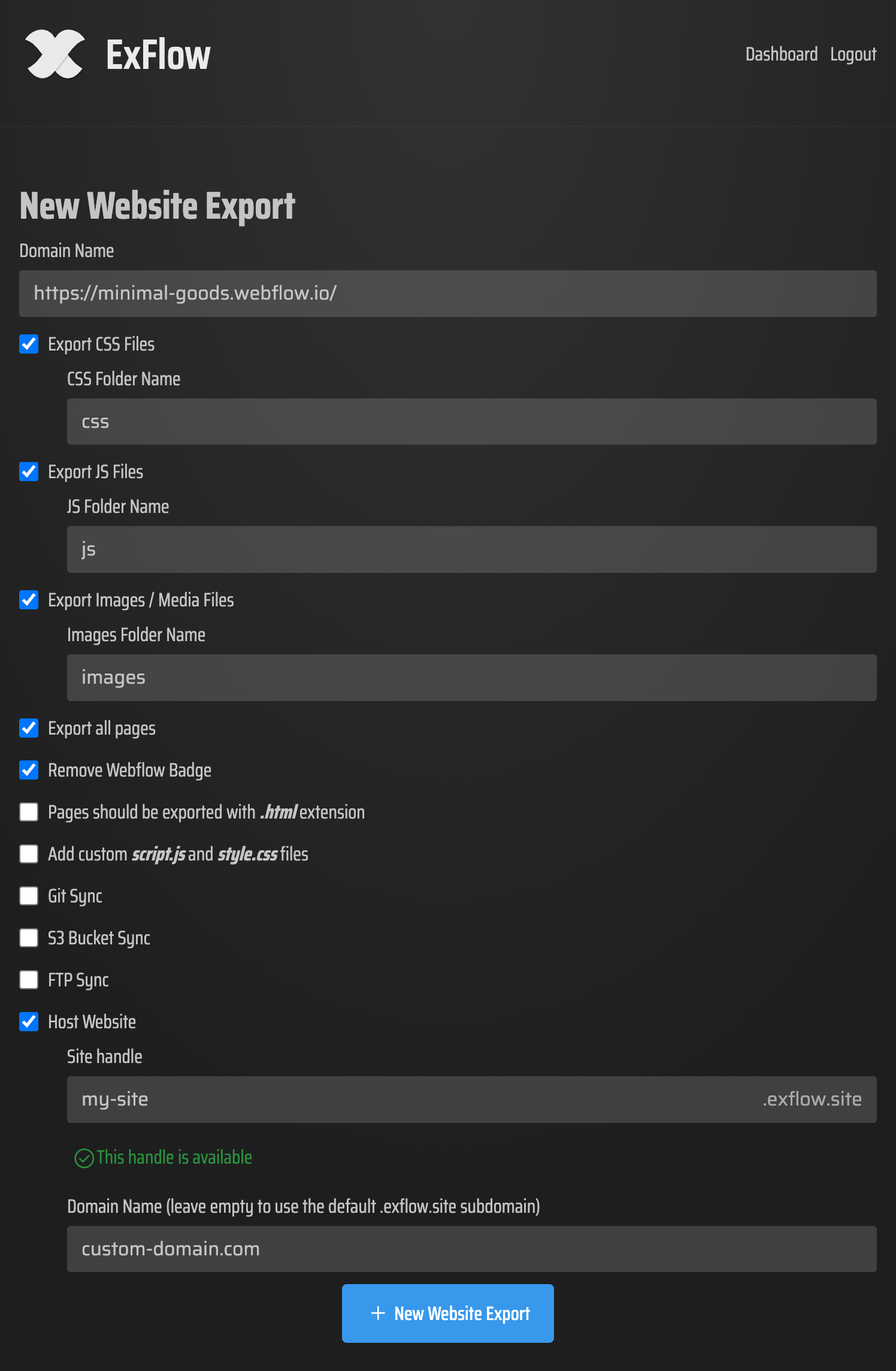
- Customize Your Export: Select what you want to export. You can choose to export CSS files, JS files, and all images/media. If you are planning on self-hosting your Squarespace site, make sure to enable the hosting option.
- Initiate the Export: ExFlow processes your site, collecting all necessary files and content. It even works for password-protected sites if you provide the credentials.
- Download the ZIP: Once complete, you’ll receive a full static version of your site. You can also sync your backup directly to a Git repository or an AWS S3 bucket for automated, recurring security.
Conclusion
Don't leave your website's safety to a single platform's cloud. By exporting your Squarespace site as static HTML files with ExFlow, you gain total control over your digital assets, save on hosting costs, and ensure that your hard work is never more than a click away. Start your backup today and sleep easier knowing your site is truly yours.