 ExFlow
Why Your Webflow Site Export Looks Broken (And How ExFlow Fixes It)
Webflow is a designer’s paradise, offering unparalleled creative freedom. However, that freedom often comes with a steep price tag once you hit the 'Publish' button on their hosting plans. For many users, the logical next step is to export the code and host it elsewhere—on Cloudflare, Netlify, or a personal server. But then, disaster strikes. You open your index.html file, and everything looks... wrong.
Animations don't trigger, images are missing, and your beautifully curated CMS pages? Nowhere to be found. If you’ve ever tried to backup a Webflow website locally only to end up with a broken mess, you aren't alone. In this guide, we’ll dive into exactly why Webflow exports break and how ExFlow provides the precision fix you need.
The 'Broken Export' Syndrome: Why Common Scrapers Fail
Many users start by using generic website copiers like HTTrack. While these tools worked well for the static web of 2010, they are fundamentally ill-equipped for modern platforms like Webflow. Here are the three primary reasons your export looks broken:
1. The JavaScript Trap (Missing Interactions)
Webflow’s famous 'Interactions' are powered by complex JavaScript. Generic scrapers often download the script files but fail to execute them in the correct context during the crawl. This results in 'ghost' elements that never fade in or navigation menus that remain permanently closed. Unlike HTTrack alternatives, ExFlow is built specifically to understand Webflow’s engine, ensuring every trigger and animation remains intact.
2. The CMS Black Hole
This is the biggest hurdle. Webflow’s native code export (available on Workspace plans) intentionally excludes CMS collection pages. If you have a blog with 50 posts, a native export gives you the design of the blog list, but zero individual post pages. Scrapers try to find these pages but often miss the underlying URL structure.
3. Broken Asset Paths and CDN Issues
Webflow hosts images and assets on a global CDN. When you download a site manually, the paths often still point to Webflow’s servers. If you cancel your plan, those assets can disappear. A truly successful export needs to 'localize' every image, font, and script file.
How ExFlow Fixes the Export Process
ExFlow isn't just a scraper; it’s a dedicated bridge between Webflow and self-hosting. It was designed to solve the exact headaches mentioned above.
- Full CMS Export: Unlike the native exporter, ExFlow pulls every single CMS item and generates a corresponding static HTML page for it. This makes it the ultimate tool to download a Squarespace website or Webflow site without losing data.
- Asset Localization: ExFlow automatically rewrites the code to ensure all images and CSS files are stored in your local folder. No more broken links when you disconnect from Webflow's hosting.
- Clean Code & Badge Removal: Professional sites shouldn't have 'Made in Webflow' branding. ExFlow handles badge removal automatically, giving you a clean, white-label product.
Step-by-Step: Exporting Your Site Correcty
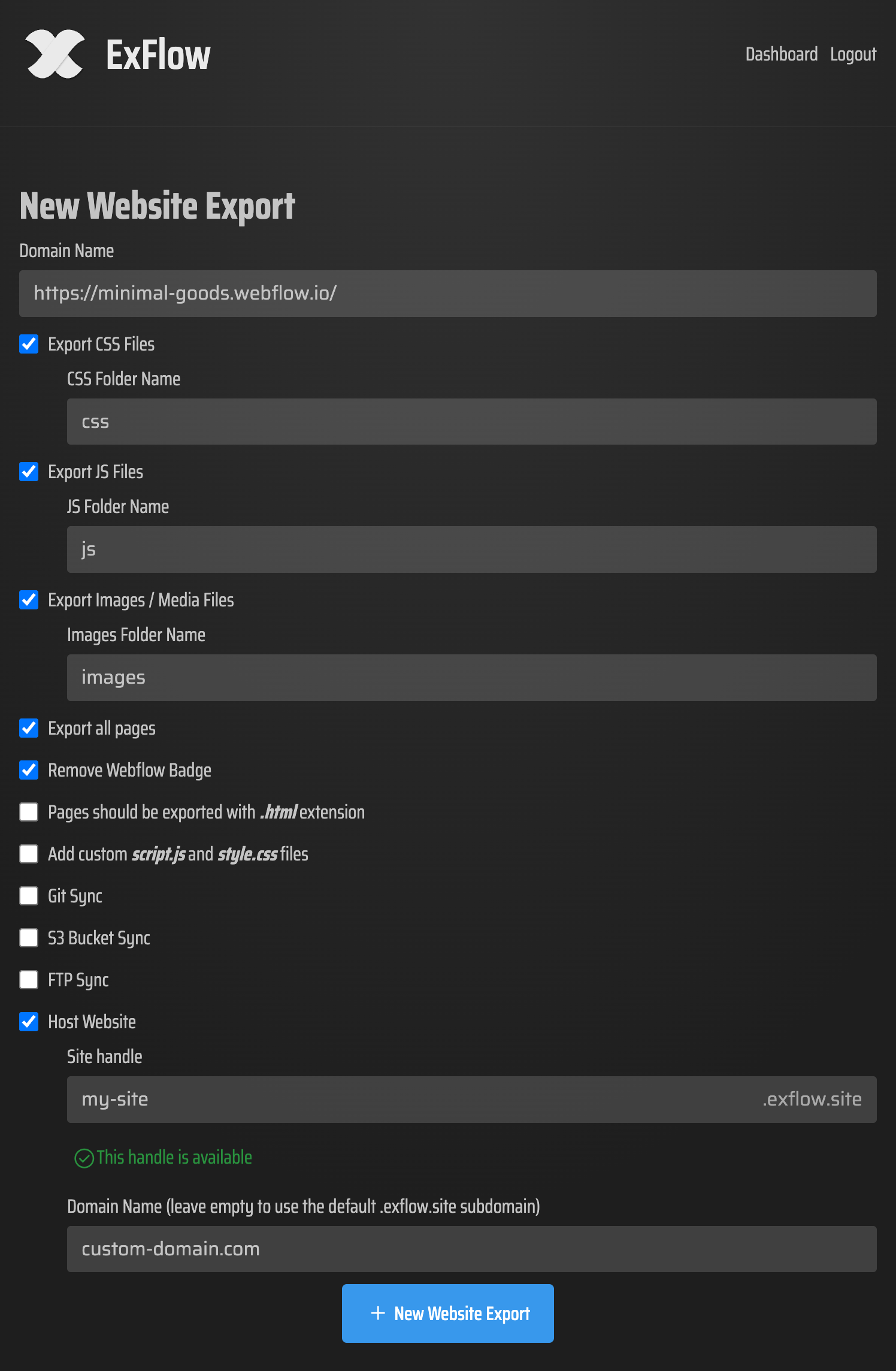
- Enter Your URL: Visit ExFlow.site and provide your site's domain.
- Configure Your Sync: Choose whether you want a simple ZIP download or if you'd like to sync directly with GitHub, AWS S3, or FTP. This is perfect if you want to move a Webflow site to Cloudflare automatically.
- Run the Export: ExFlow will process your interactions, localized assets, and CMS pages.
- Go Live: Upload your files to your preferred host or use ExFlow’s unlimited hosting plan for a fraction of the cost of standard platforms.
Why Self-Hosting is the Future
By moving away from expensive proprietary hosting, you gain more than just savings—you gain control. Whether you're worried that Webflow hosting is too expensive or you simply want a local backup, ExFlow makes the transition seamless.
Don't settle for broken exports and missing animations. Use a tool that understands your design. Ready to take your site anywhere? Try ExFlow today.