 ExFlow
How to Sync Webflow with AWS S3 for Automated Backups
Webflow is an incredible platform for designers, but as your project grows, so do the costs. If you’re managing multiple sites, the hosting fees can quickly become a significant monthly expense. Moreover, while Webflow does have built-in backups, having a localized or independent backup in a cloud environment like Amazon S3 provides an extra layer of security and data sovereignty.
In this guide, we will explore how you can seamlessly sync your Webflow site with AWS S3 using ExFlow. This setup not only acts as a robust backup solution but also sets the stage for high-performance static hosting at a fraction of the cost.
Why AWS S3 for Webflow Backups?
Amazon S3 (Simple Storage Service) is the industry standard for cloud storage. It’s known for its 'eleven nines' of durability, meaning your data is practically safe from any hardware failure. By syncing your Webflow site to S3, you achieve:
- Redundancy: You aren't tied to a single platform's internal backup system. Even if your Webflow account is locked or the service experiences downtime, your files are safe in your own cloud.
- Cost-Effectiveness: S3 storage is incredibly cheap, especially for static assets like images and CSS. You only pay for what you use, which is usually pennies per month for a standard site.
- Portability: Once your site files are in S3, you can easily serve them via Amazon CloudFront (a CDN) or move them to any other provider like Cloudflare or Netlify.
If you’ve ever felt that Webflow hosting is too expensive, moving your assets to S3 is the first step toward financial freedom and site ownership.
The Problem with Manual Exports
Webflow allows you to export code on certain paid plans, but it’s a manual and often frustrating process. You have to trigger the export, wait for the ZIP file to be generated, download it, unzip it, and then manually upload thousands of files to S3 via the CLI or AWS Console. Furthermore, the native exporter often misses CMS-hosted images or requires high-tier plans just to access the code.
This is where ExFlow changes the game. Unlike generic crawling tools like HTTrack, which often break animations or miss critical scripts, ExFlow is purpose-built for the Webflow ecosystem. It ensures that every interaction (including complex IX2 animations), every image, and every line of CSS is preserved perfectly during the sync.
Step-by-Step: Syncing Webflow to AWS S3
1. Prepare Your AWS S3 Bucket
Log in to your AWS Management Console and create a new S3 bucket.
- Bucket Name: Choose a unique name (e.g.,
company-webflow-backup-v1). - Region: Select a region close to your primary audience (e.g.,
us-east-1). - Permissions: If this is just a backup, keep 'Block all public access' enabled. If you intend to use it for hosting, you will later enable 'Static Website Hosting'.
2. Generate IAM Credentials
To allow ExFlow to write to your bucket, create a dedicated IAM user in AWS. Assign the AmazonS3FullAccess policy to this user (or a custom policy restricted to your specific bucket). Save the Access Key ID and Secret Access Key securely.
3. Configure ExFlow for Sync
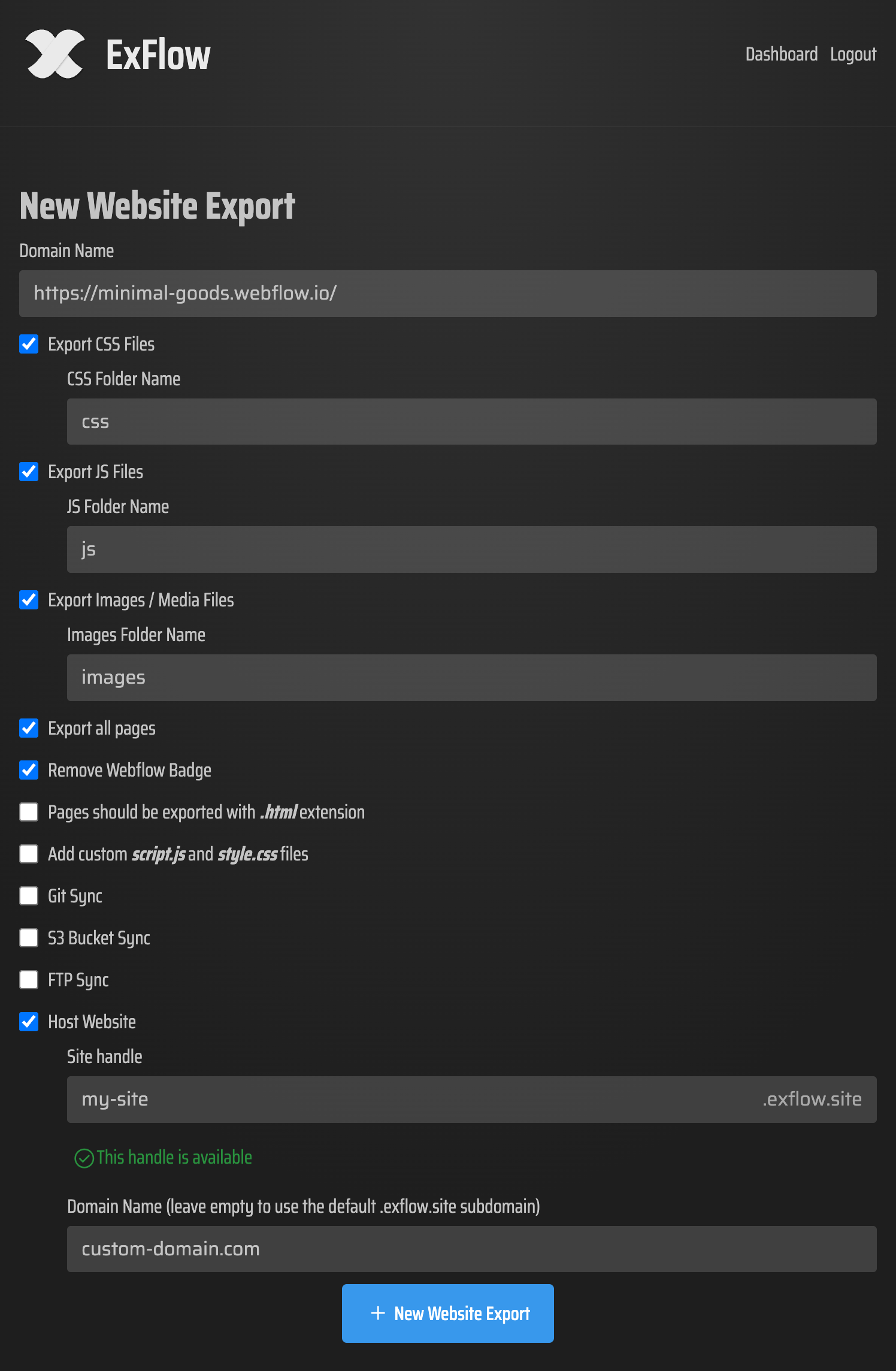
Head over to ExFlow.site and enter your Webflow site URL. Navigate to the sync settings and select Sync S3.
- Enter your Bucket Name, Region, Access Key, and Secret Key.
- Ensure you toggle 'Export All Pages' (including CMS) and 'Remove Made with Badge' for a professional result.
4. Initiate and Monitor
Start the export process. ExFlow will crawl your site, package all dependencies, and push them directly into your S3 bucket. You can watch the progress in real-time.
Automating Your Workflow
The real power of ExFlow lies in automation. Rather than manually backing up a Webflow website locally, you can use ExFlow to schedule regular syncs. This ensures that every update you publish in the Webflow Designer is mirrored in your S3 backup without you lifting a finger.
Security and Data Sovereignty
Using ExFlow's encrypted sync ensures your credentials remain protected. For enterprise-grade projects, having your site data in S3 is a compliance requirement. It protects you against platform lock-in and provides a disaster recovery plan that works.
Video Guide: Exporting for Free
If you want to see the export process in action before setting up your S3 sync, check out this tutorial:
https://www.youtube.com/watch?v=USu9ktYjFDU
Conclusion
Syncing Webflow with AWS S3 using ExFlow is the ultimate power move for developers. It provides peace of mind through automated backups and opens the door to slashing hosting costs by moving to a static architecture. Stop overpaying for basic hosting and start leveraging the scale of AWS.
Ready to take control of your data? Start your first sync with ExFlow today.