 ExFlow
How to Move a Webflow Site to Cloudflare for Free

Designing a website in Webflow is a joy, but the monthly hosting bill? Not so much. For many small businesses, freelancers, and portfolio owners, Webflow hosting is expensive, often starting at $14-$23 per month per site. If you're looking for a way to slash those costs to zero while actually improving your site's performance, moving to Cloudflare Pages is the ultimate move.
In this guide, we'll show you how to download a Webflow site and host it on Cloudflare for free without losing your animations, styling, or CMS pages.

Why Move from Webflow to Cloudflare?
Cloudflare Pages is a lightning-fast hosting platform for static websites. Unlike traditional servers, it serves your content from a global edge network, meaning your site loads almost instantly for users anywhere in the world.
The Benefits:
- Zero Cost: The free tier of Cloudflare Pages is incredibly generous—unlimited bandwidth and no cost for hosting.
- Superior Speed: Static files are served via Cloudflare’s global CDN.
- Security: Automatic SSL and DDoS protection come standard.
- Full Control: You own your files and aren't locked into a single platform's pricing hikes.
However, there’s a catch. To move your site, you first need to get your code out of Webflow. While Webflow offers a basic export feature, it often leaves behind CMS pages and can be technically limiting. This is where ExFlow becomes your secret weapon.
The Better Way to Export: Why HTTrack Fails
Many users try to use tools like HTTrack to scrape their site, but they quickly run into HTTrack issues when exporting Framer or Webflow websites. Scraping tools often miss critical scripts, break complex animations, or fail to capture the high-resolution images you spent hours optimizing.
ExFlow is a dedicated httrack alternative designed specifically for modern no-code platforms. It doesn't just scrape; it intelligently exports your full site, including CSS, JS, and all media files, ensuring your static site looks and functions exactly like the original.

Step 1: Export Your Site with ExFlow
Before you can host on Cloudflare, you need a clean export of your project.
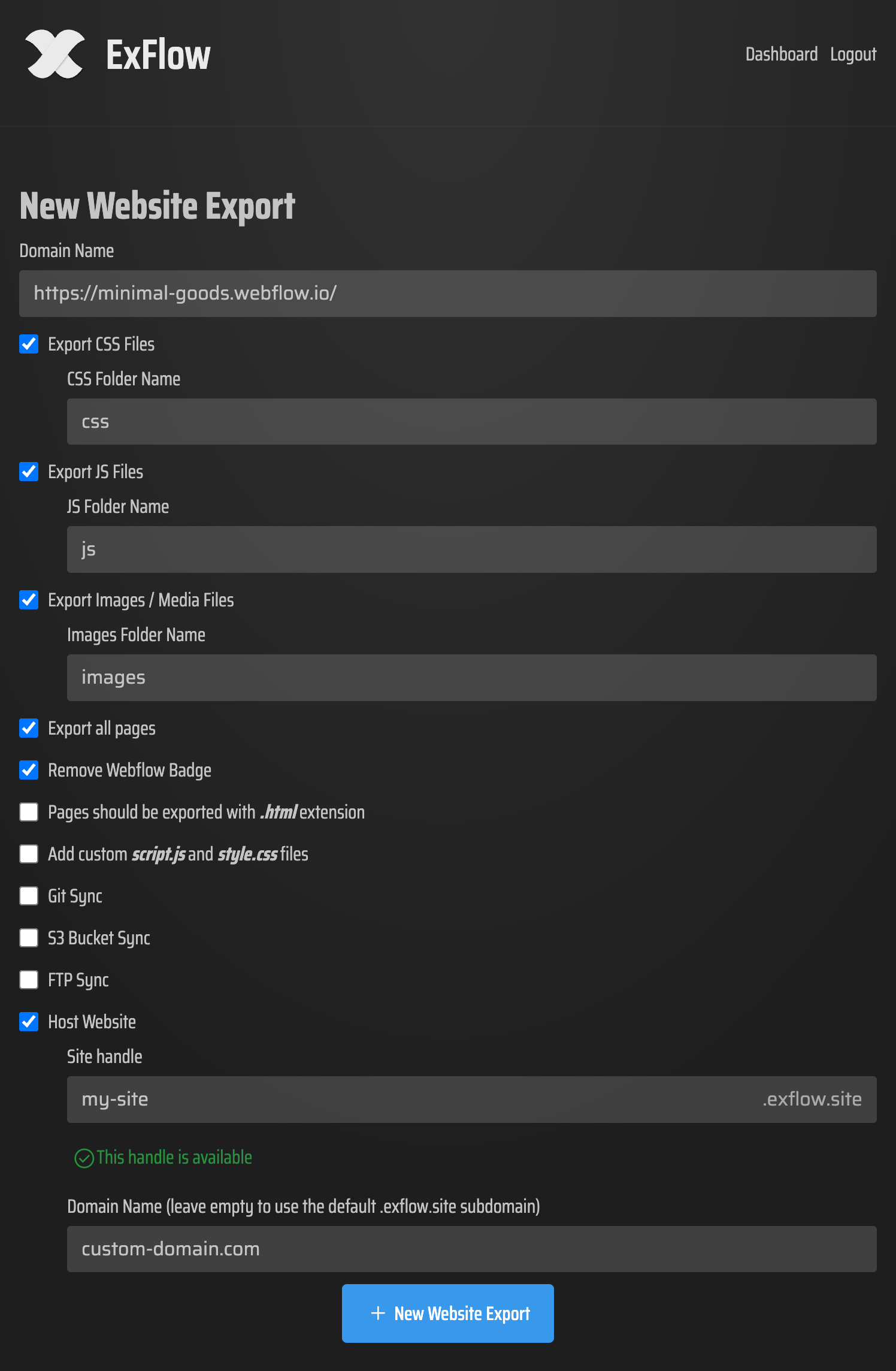
- Enter Your URL: Head to ExFlow.site and enter your Webflow domain.
- Configure Your Settings: ExFlow allows you to backup your Webflow website locally with one click. Make sure to select 'Export All Pages' to include your CMS content.
- Clean Up: Use the 'Remove Made in Webflow Badge' feature to give your site a professional, white-label look for free.
- Download: Once processed, you’ll receive a ZIP folder containing your optimized HTML, CSS, and Javascript.
Step 2: Uploading to Cloudflare Pages
Now that you have your files, it's time to go live on Cloudflare.
- Create an Account: Sign up at Cloudflare.com.
- Navigate to Workers & Pages: In the dashboard, click on 'Pages' and then 'Create a project'.
- Upload Assets: Choose the 'Upload assets' option. You can simply drag and drop the folder you downloaded from ExFlow.
- Deploy: Cloudflare will give you a
*.pages.devURL immediately. Check your site to see those Webflow interactions running perfectly!

Step 3: Connecting Your Custom Domain
To make it official, you’ll want to link your domain (e.g., www.yourwebsite.com).
- In your Cloudflare Pages project, go to the 'Custom domains' tab.
- Click 'Set up a custom domain' and enter your URL.
- If your DNS is already managed by Cloudflare, it will automatically update the records for you. If not, Cloudflare will provide the CNAME records you need to add to your registrar.
Conclusion: Stop Overpaying for Hosting
By combining the design power of Webflow with the hosting efficiency of Cloudflare, you get the best of both worlds. You can continue to iterate on your design in Webflow and simply use ExFlow to sync your updates whenever you're ready to publish.
This method isn't just for Webflow either; you can use the same strategy to export a Framer website or self-host Squarespace content.
Ready to save on your monthly bills? Try ExFlow today and take your first step toward hosting freedom.