ExFlow
Troubleshooting HTTrack Issues When Exporting Framer Websites
Troubleshooting HTTrack Issues When Exporting Framer Websites
Framer is a powerful tool for creating interactive websites, but when it comes to exporting your site for self-hosting, you might run into issues, especially when using traditional tools like HTTrack. This guide will delve into the common problems users face with HTTrack and Framer exports, and more importantly, offer solutions and introduce ExFlow as a superior alternative.
Why HTTrack Might Fail with Framer Websites
HTTrack is a popular website copier that can download a website's content to your local machine. However, Framer's dynamic nature and modern web technologies can sometimes pose challenges for older or more generic crawlers like HTTrack. Here are some common issues:
1. Incomplete Exports
- Problem: HTTrack might miss crucial assets like JavaScript files, CSS stylesheets, or even entire pages, leading to a broken or non-functional exported site.
- Cause: Framer sites often rely on complex JavaScript for interactivity and dynamic content loading. HTTrack might not correctly parse these scripts or follow all the links, especially if they are generated dynamically.
2. Broken Styling and Layouts
- Problem: The exported site may not render correctly, with messed-up layouts, missing styles, or unclickable elements.
- Cause: CSS files might not be fully downloaded or linked correctly. Framer's unique styling approach might also be difficult for HTTrack to interpret.
3. Missing Dynamic Content
- Problem: If your Framer site uses CMS capabilities or dynamic content, HTTrack will likely fail to export this data, as it primarily copies static HTML files.
- Cause: HTTrack is designed for static sites and cannot inherently handle or export dynamic content that is fetched from a database or an API.
4. Inability to Remove the "Made in Framer" Badge
- Problem: Even if the export is otherwise successful, the exported site might still include the "Made in Framer" badge, which you might want to remove for a professional look.
- Cause: This badge is often embedded in the site's code and may require specific instructions or tools to remove.
Solutions and Workarounds
While troubleshooting HTTrack can be a headache, there are ways to potentially overcome these issues or, better yet, use a tool designed for this purpose.
Manual Fixes (Time-Consuming)
- Review Downloaded Files: Carefully go through the downloaded files. Check for missing CSS, JS, or image files. You might need to manually re-link them in your HTML files.
- Inspect the Site Locally: Open the exported
index.htmlfile in your browser and use the browser's developer tools to identify broken links, missing assets, and console errors. This can give you clues about what went wrong. - Adjust HTTrack Settings: Experiment with HTTrack's advanced settings. You can try changing the scan depth, file inclusion/exclusion patterns, or HTTP settings. However, this requires a good understanding of how HTTrack works and Framer's structure.
ExFlow: The Recommended Alternative
For a seamless and reliable Framer website export, we highly recommend using ExFlow (https://exflow.site/). ExFlow is specifically built to handle exports from platforms like Framer, Webflow, and Squarespace, ensuring that all assets, dynamic content, and styling are preserved.
Why ExFlow is Better for Framer Exports:
- Platform-Specific Export: ExFlow understands the nuances of Framer's structure, ensuring a complete and accurate export of all site components, including CSS, JavaScript, images, and dynamic content.
- No More Broken Exports: Unlike generic tools, ExFlow is designed to work flawlessly with Framer, avoiding the common pitfalls that lead to broken layouts and missing assets.
- Badge Removal: ExFlow offers a straightforward option to remove the "Made in Framer" badge, giving you a clean, self-hosted website.
- All Pages Exported: ExFlow ensures that all pages, including CMS content, are exported, which is often a limitation with other tools.
- Integrated Hosting: Beyond exporting, ExFlow also provides an inexpensive and unlimited hosting solution. You can export your site and host it directly on ExFlow's servers with support for custom domain linking, simplifying the entire process.
- S3, Git, and FTP Sync: For those who prefer their own hosting infrastructure, ExFlow supports automatic syncing with S3, Git, and FTP.
How to Use ExFlow for Framer Exports
- Visit ExFlow: Go to https://exflow.site/.
- Enter Your Framer Site URL: Input the URL of your Framer website.
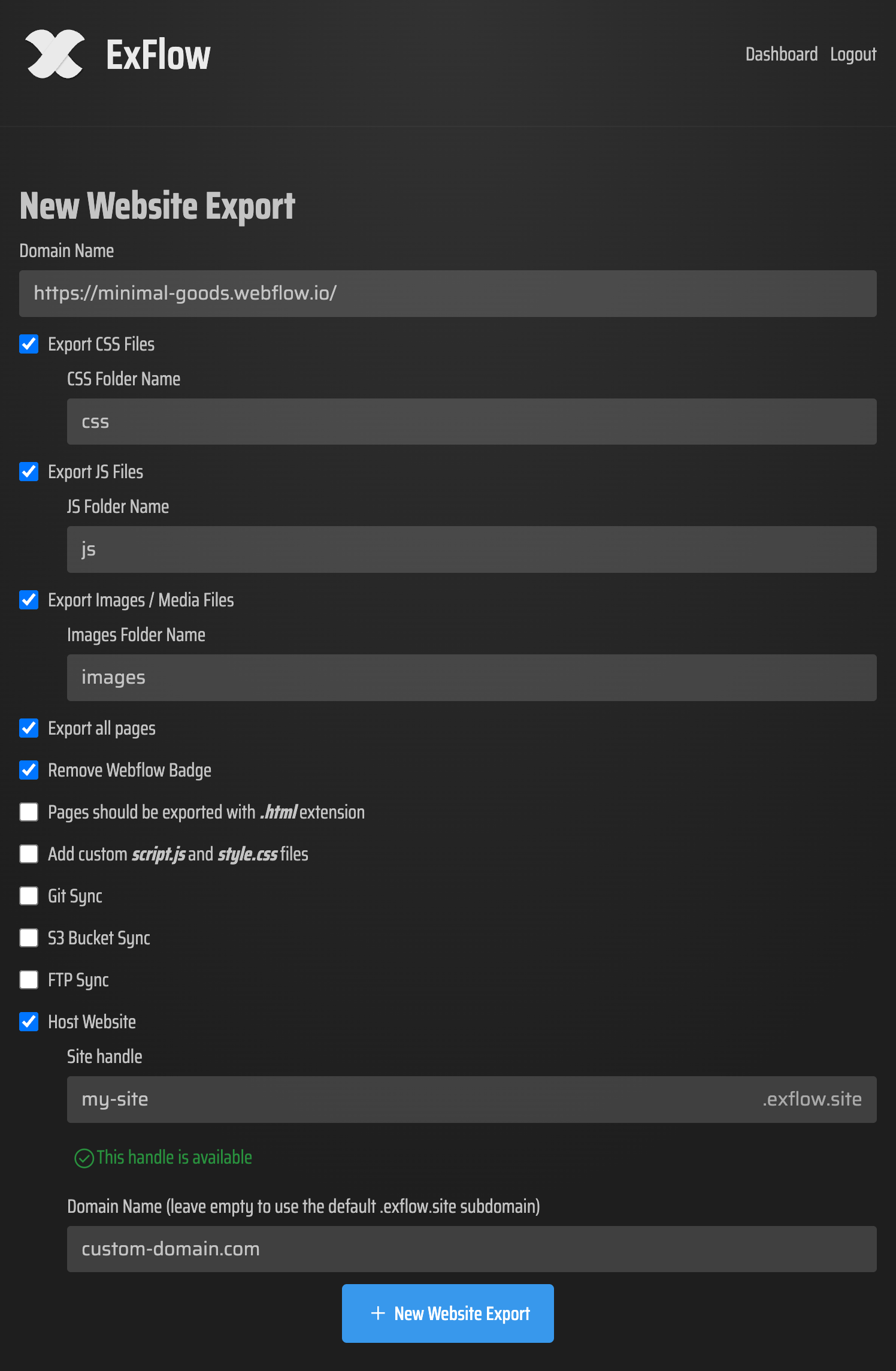
- Customize Export Settings: Choose your desired export options, such as including CSS, JS, and images. Ensure you select the option to remove the "Made in Framer" badge.
- Initiate Export: Click the export button.
- Download or Host: Once the export is complete, you can download the ZIP file or leverage ExFlow's integrated hosting services.
Conclusion
While HTTrack can be a useful tool for general website downloading, it often struggles with the complexities of modern website builders like Framer. The frequent issues with incomplete exports, broken styling, and missing dynamic content can be frustrating and time-consuming to fix. ExFlow offers a robust, reliable, and user-friendly solution specifically designed for exporting Framer (and other platform) websites. By choosing ExFlow, you can ensure a successful export and gain the flexibility to host your site anywhere, or use ExFlow's convenient integrated hosting.
<br />