 ExFlow
How to Backup a Webflow Website Locally (Including All CMS Pages)
In the world of web design, Webflow has emerged as a powerhouse, offering unparalleled creative freedom. But as any seasoned developer knows, relying solely on a SaaS platform for your primary business asset is a risky move. What happens if you need to migrate? What if the hosting costs become unsustainable? Or worse, what if you simply want a complete, offline copy of your work for peace of mind?

Backing up your Webflow website locally is not just a "nice-to-have" feature; it's a fundamental step in ensuring digital sovereignty and data security. However, if you've ever tried to use the native "Export Code" feature in Webflow, you've likely hit a brick wall.
The Problem: Webflow’s Native Export Limitations
Webflow allows users on Workspace plans to export their site's code. On the surface, this seems like a solid backup solution. You get a ZIP file with your HTML, CSS, and JS. But once you open that folder, the limitations become glaringly obvious:
- No CMS Content: This is the biggest hurdle. Webflow does not export your Collection lists or Collection template pages. If your site is a blog, a portfolio, or a directory, the native export leaves you with empty pages and broken layouts.
- Asset Management Issues: While basic assets are included, complex responsive image variants (srcset) can sometimes behave unexpectedly if they weren't optimized via the Assets panel.
- No Site Search: The internal search functionality is tied to Webflow’s servers. Once you export, it stops working.
- The "Made in Webflow" Badge: Unless you are on a specific paid tier, that pesky badge remains, cluttering your clean code.
As we discussed in our previous guide on why Webflow hosting is becoming too expensive, these limitations are often designed to keep you locked into their ecosystem.
Why You Need a Local Backup
Beyond just "escaping" the platform, having a local backup provides several advantages:
- Version Control: You can track changes over time using Git.
- Offline Development: Test new scripts or CSS locally without affecting the live site.
- Permanent Archiving: Ensure your site exists even if your subscription lapses.

Enter ExFlow: The Complete Webflow Backup Solution
If tools like HTTrack have failed you (as explained in our comparison of ExFlow vs HTTrack), you know that generic scrapers often break animations and miss dynamic content. ExFlow was built specifically to solve these problems.
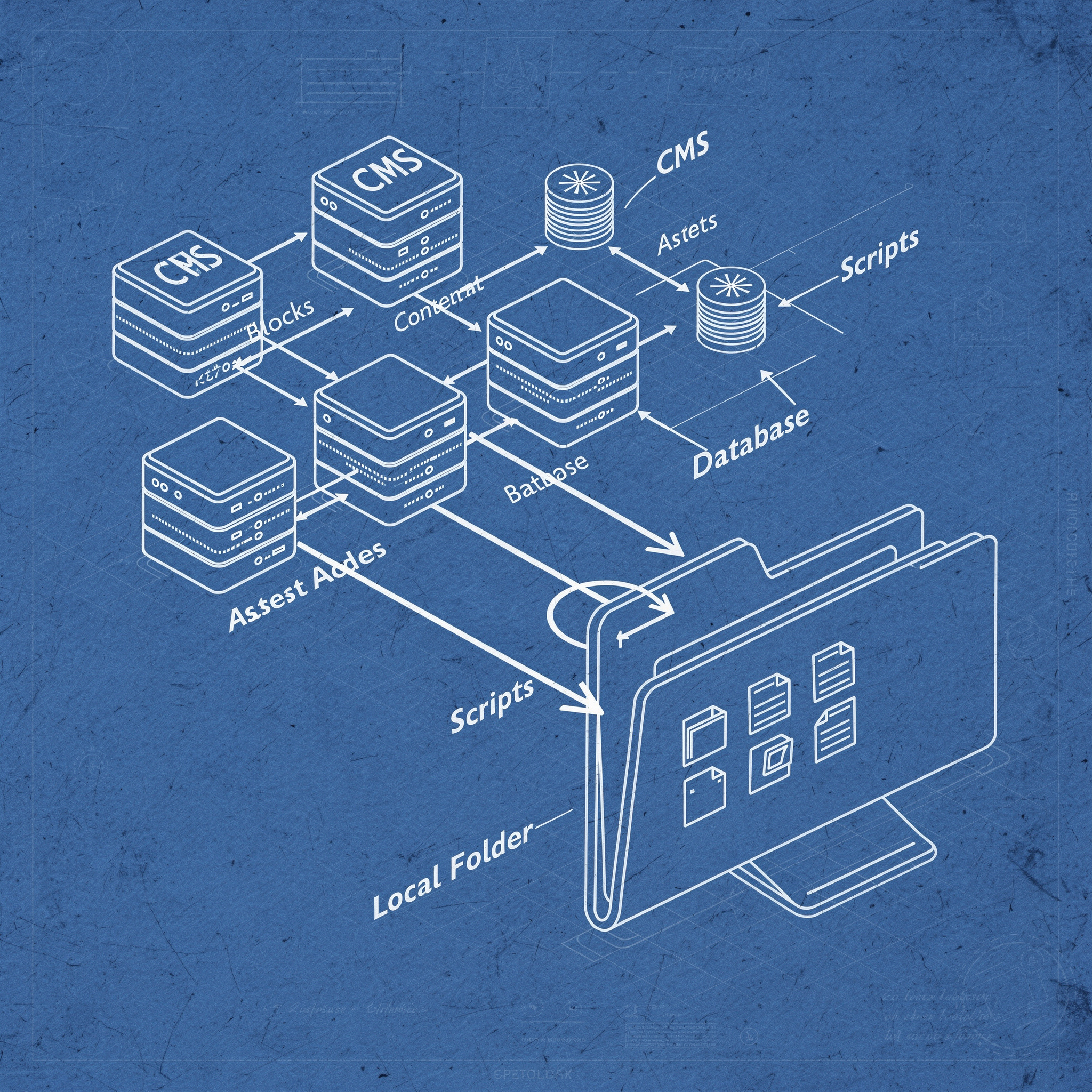
ExFlow is a dedicated website exporter that understands the architecture of Webflow, Squarespace, and Framer. It doesn't just "scrape" the front end; it systematically crawls and packages every single asset, including those elusive CMS pages.
Step-by-Step: How to Backup Your Webflow Site Locally
1. Enter Your Site URL
Head over to exflow.site and enter the URL of the site you wish to backup. Unlike native tools, ExFlow works on any public URL, making it incredibly versatile.
2. Configure Your Export Settings
This is where the magic happens. In the ExFlow dashboard, you can toggle specific settings to ensure your backup is exactly how you want it:
- Export All Pages: This includes every single CMS item page.
- Export Assets: CSS, JS, and all media files (Images, Videos) are downloaded into organized folders.
- Remove Badge: Automatically strip the "Made in Webflow" branding from your code.
- Clean URLs: Ensure your pages are exported with
.htmlextensions for easy local browsing.
3. Start the Extraction
Once you hit export, ExFlow begins its deep crawl. It identifies every image, every interaction script, and every dynamic link. It then generates a clean, static version of your site that looks and behaves exactly like the original.
4. Download Your ZIP
After the process completes, you’ll receive a comprehensive ZIP folder. This is your local backup. You can open index.html in any browser, and your site will run flawlessly, animations and all, without needing a server connection.
Advanced Features: Syncing and Hosting
For those who want to take their backup a step further, ExFlow offers automated syncing options:
- Git Sync: Automatically push your backups to GitHub or GitLab.
- S3 & FTP Sync: Send your site files directly to your own servers or AWS buckets.
- ExFlow Hosting: If you decide you're tired of high hosting fees, ExFlow offers an incredibly inexpensive hosting solution with unlimited bandwidth. Just link your domain, and you're good to go.
Conclusion
Don't let your hard work be locked behind a subscription wall. Whether you're looking to save money or simply want the security of owning your data, backing up your Webflow site locally is a vital practice. With ExFlow, you can finally export CMS pages, remove badges, and maintain a high-performance static version of your site with just a few clicks.
Ready to take control? Try ExFlow for free today and see how easy backing up can be.