 ExFlow
How to Download a Squarespace Website as Static Files for Backup
Squarespace is a powerhouse for designers, offering sleek templates and an intuitive drag-and-drop interface. However, for many users, the "walled garden" aspect of the platform eventually becomes a constraint. Whether you're facing rising hosting costs or simply want the peace of mind that comes with a local backup, knowing how to download a Squarespace website as static files is an essential skill.
In this guide, we’ll explore the limitations of Squarespace’s native tools and show you how to use ExFlow to create a perfect, functional backup of your entire site.
Why You Need a Static Backup of Your Squarespace Site
Relying solely on a cloud platform for your website’s existence is risky. Platforms change their terms, prices go up, and technical glitches can happen. A static backup gives you:
- Data Sovereignty: You own your files, independent of Squarespace’s servers.
- Cost Efficiency: Static sites are significantly cheaper to host. By moving to providers like Cloudflare Pages or Amazon S3, you can save hundreds of dollars a year.
- Security: Static files are less vulnerable to the types of exploits that can affect CMS platforms.
- Speed: Static websites load lightning-fast, which is a major factor for SEO.

The Problem with Squarespace’s Native Export
If you go to your Squarespace settings and look for an "Export" option, you’ll find a tool that generates an XML file. While this is better than nothing, it’s far from a complete backup.
The XML export typically includes blog posts and text content, but it does not include your CSS stylesheets, Javascript files (which handle animations), or your images and media files. To truly "download" your site, you need the entire front-end codebase. This is where many people turn to tools like HTTrack, but as we’ve discussed in our guide on HTTrack alternatives, generic scrapers often leave you with broken links and missing assets.
Introducing ExFlow: The Complete Squarespace Downloader
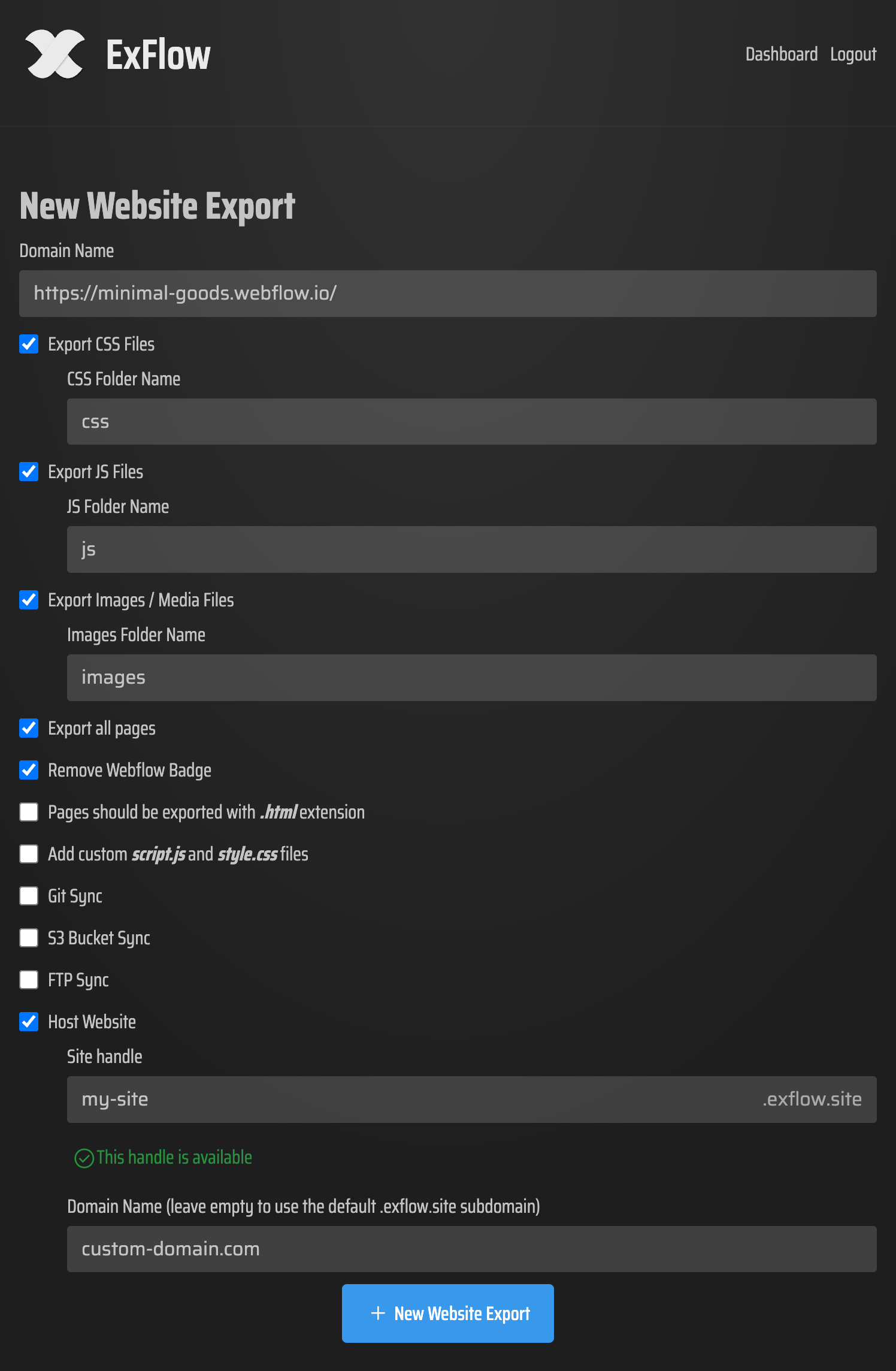
ExFlow was built specifically to solve the "export problem". Unlike generic tools, ExFlow meticulously collects every asset, script, and style to ensure your exported site looks exactly like the original.
Key Features of ExFlow:
- Full Asset Collection: Downloads all images, videos, and media files locally.
- Code Optimization: Cleanly exports CSS and JS.
- CMS Support: Handles complex dynamic content that native exporters miss.
- One-Click Sync: Automatically push your backup to GitHub, S3, or FTP.
Step-by-Step: How to Download Your Squarespace Website

- Prepare Your Site: Ensure your Squarespace site is public or have your password ready.
- Enter Your URL: Navigate to exflow.site and enter your Squarespace domain.
- Configure Your Export: Select "Export Images/Media" and "Remove Made with Badge".
- Download Your ZIP: Click export, and within minutes, you'll have your comprehensive backup folder.
What to Do After Downloading?
You can keep the files as a "cold" backup, similar to how one might backup a Webflow site locally. Alternatively, you can host the site yourself using ExFlow’s unlimited hosting or follow our guide on hosting via GitHub Pages.
Conclusion
Don't let your hard work stay trapped. By downloading your Squarespace website as static files, you gain freedom and security. ExFlow makes this transition seamless.